Microsoft SCOM Server - Disk Usage and Report
SCOM Kit

This article provides a PowerShell script that gathers disk usage and then sends the report. I also describe the steps to configure a diagnostic task on a "disk full" alert in SCOM.
introduction
It may happen because we sized a disk wrongly, did not expect growth of the WinSxS folder, neglected to stop IIS logging during troubleshooting, or because the developer did not implement a log-cleanup routine in her application. Full disks can have many reasons.
The first step when receiving an alert about a filling disk is to RDP into a server and use tools to analyze the disk consumption. This takes time and reoccurs—an ideal candidate for scripting and automation.
Diagnostic tasks in SCOM can run scripts or commands directly on the affected machine when an alert occurs.
Preparing SCOM
By default, only VBScript can create diagnostic and recovery tasks. Download and install a free, open-source PowerShell community management pack on GitHub to use PowerShell. You likely have already imported management packs for Windows Server operating systems.
PowerShell script
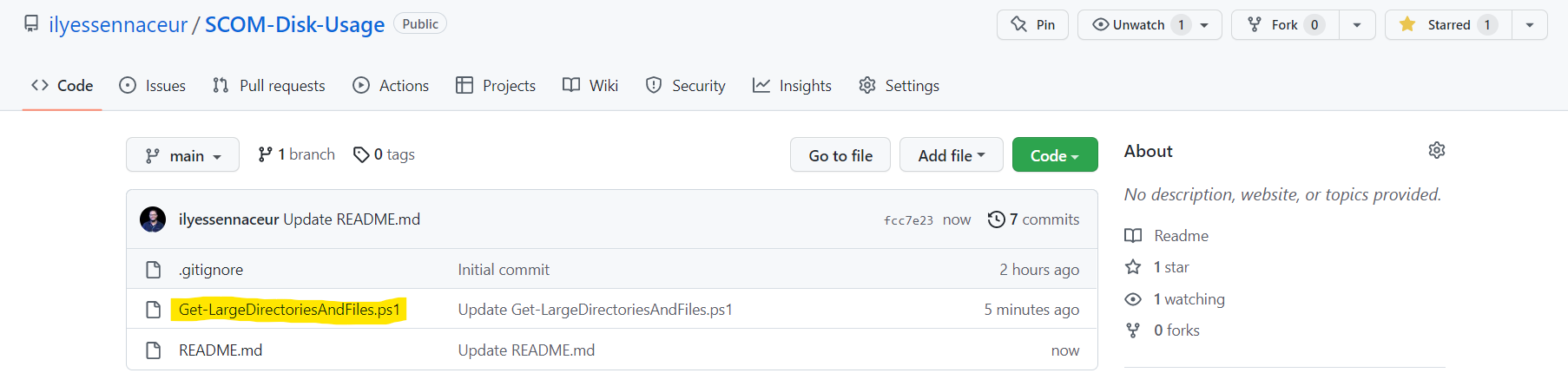
Visit https://github.com/ilyesdoingthings/SCOM-Disk-Usage
Create the diagnostic task
In the SCOM console, switch to the Authoring pane and expand Management Pack Objects and Monitors. Limit the search to logical disk. Right click Windows [20XX] Logical Disk Free Space Monitor.
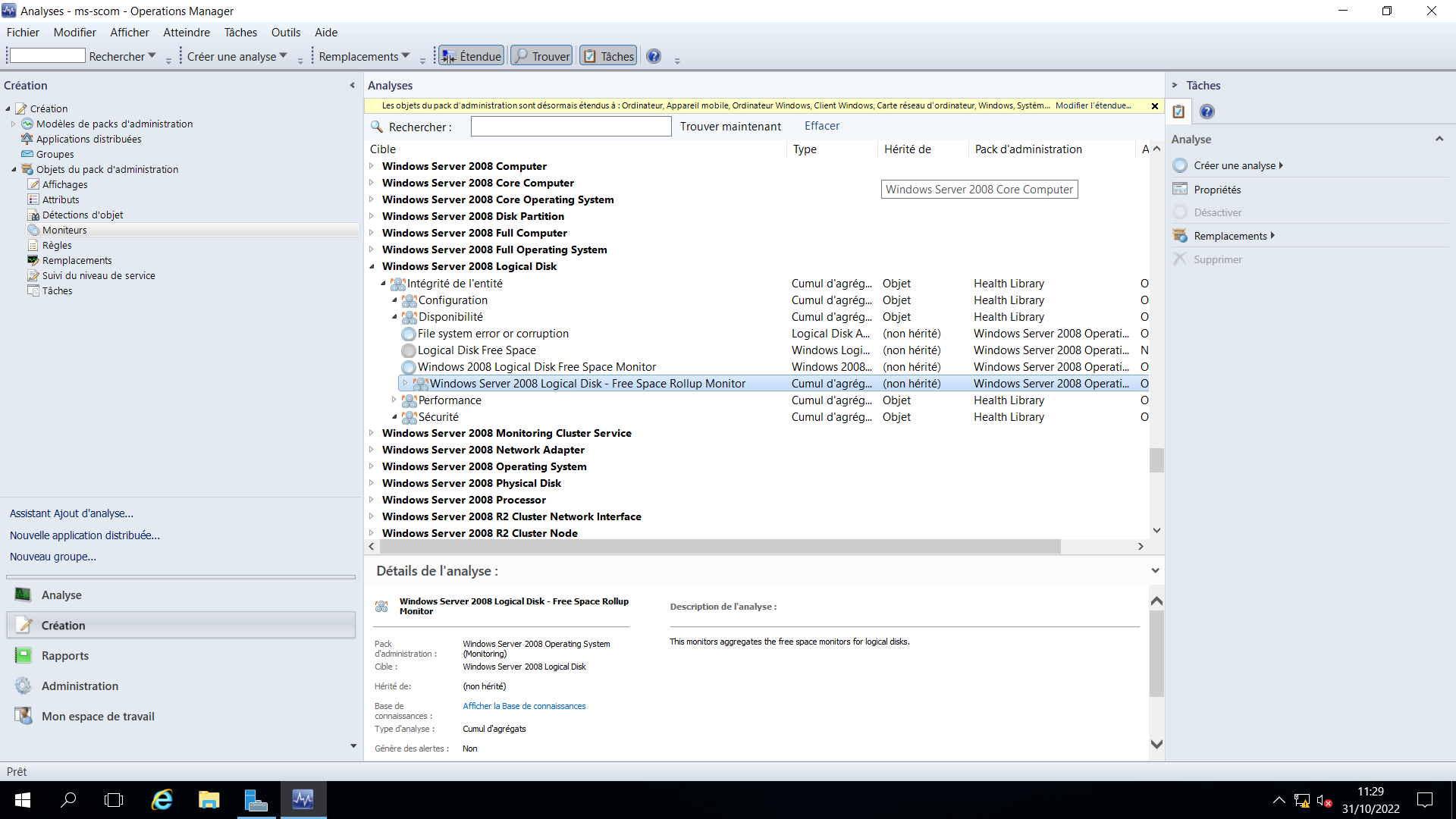
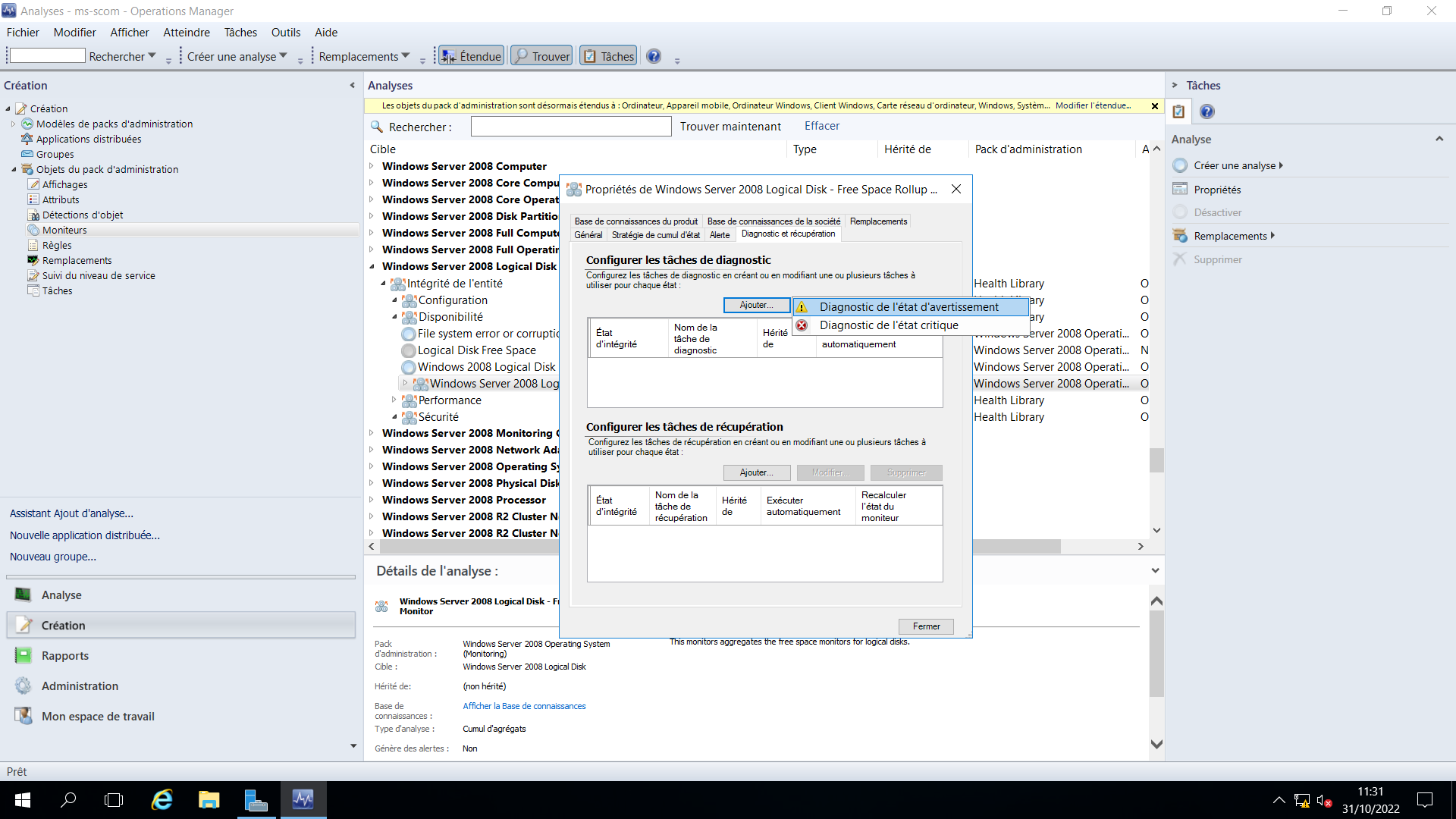
Switch to the Diagnostic and Recovery tab, click Add…, and choose Diagnostic for warning health state.
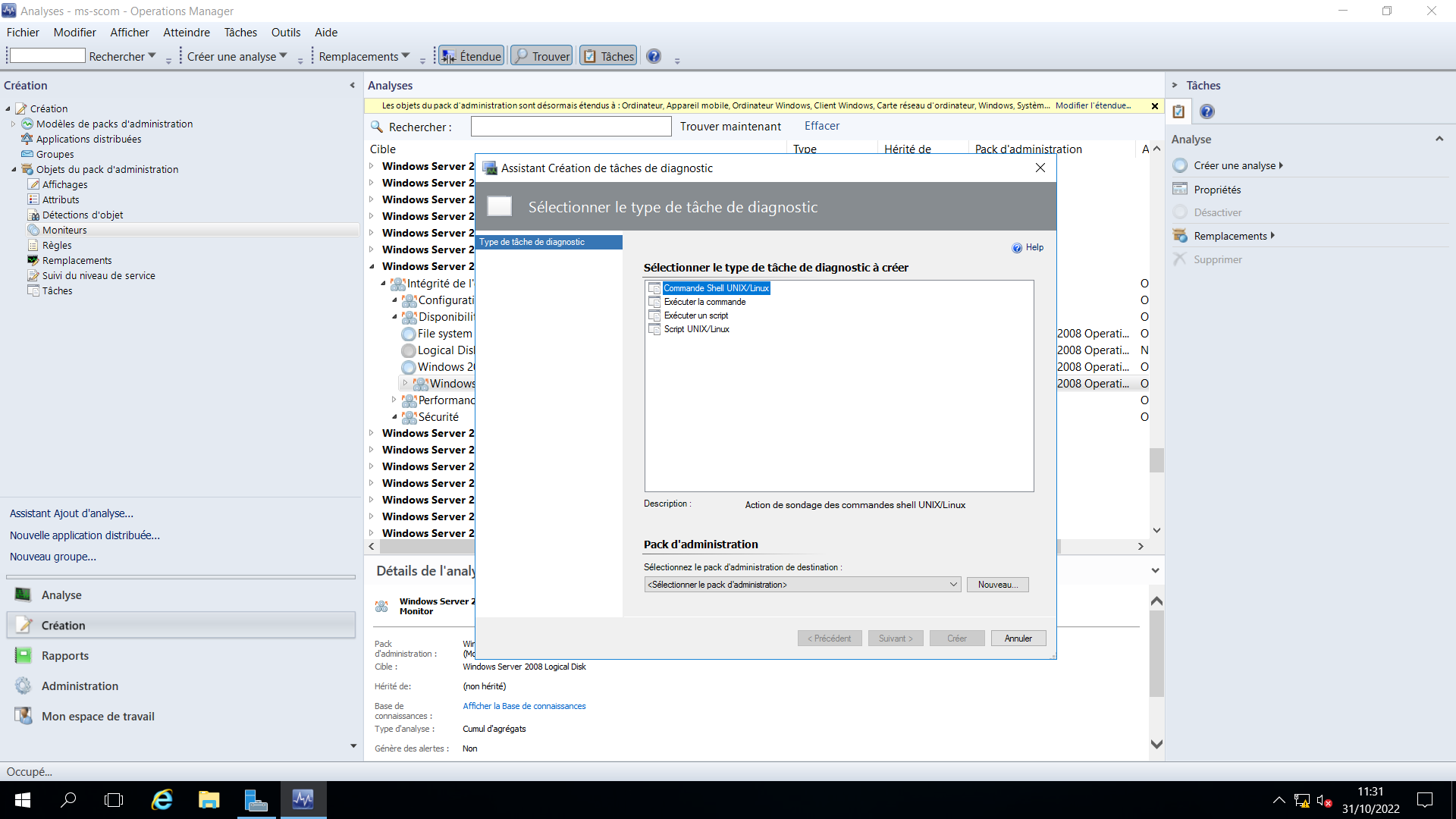
Chose Run a PowerShell script (Community) and click New… to create a management pack to store the task in.
Choose a fitting name like Windows.Server.Custom.Tasks and proceed by clicking Next. As an optional step, you can specify additional information in the Knowledge section. Proceed by clicking Create. Back in the Task Wizard, ensure that Run a PowerShell script (Community) is still selected and click Next.
In the General section, specify a task name, such as Disk Full - Troubleshooting Assistance and optionally a description, such as Scans the partition and sends a utilization report to the admin team. Proceed by clicking Next.
In the Script section, enter a File Name, such as Get-LargeDirectoriesAndFiles.ps1, set the timeout to 5 minutes, and paste the Script into it.
Set the variable $emailTo to specify the recipient of the disk usage report, such as adminteam@contoso.msft. The variable $smtpSrv specifies the name that will send the mail, and set $emailFrom specifies the sender address.
Optionally you can adjust the values for the number of directories ($numberOfTopDirectories) and files ($numberOfTopFiles) to show on the report.
Finaly, Initiate the task creation by clicking Create. Depending on your environment, this may take a while.